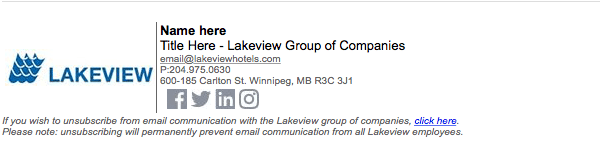
- Step 1A:
Download the applicable file and unzip to your desktop.
- Step 1B:
Right click the file you just unzipped, and select “open with”. If you have a PC, choose “notepad” from the list of options displayed, if you have a Mac, choose “textedit”
- Step 1C:
Edit the information to match your own, but take care not to alter any of the surrounding code. This code both styles and determines the layout of the signature, and provides the links to all the images it contains. NOTE: your email address must be changed in two places in order to function as a ‘mailto’ link.
- Step 1D:
Once all information has been edited, save the file. If the system asks if you’d like to keep the .htm file extension, select ‘yes’.
From this point, how to install your newly customized email signature depends on the email program you have. See instructions based on your email client:
For Outlook 2007, 2010, 2013, 2016 and 365
- Open Outlook
- Select Tools from the top menu
- Select Options, then Mail Format, and then Signatures
- Create a new signature to use as a placeholder. Save it. Shut down outlook completely (alt-[F4])
- Reopen your customized HTML signature file in notepad and copy the entire contents of the file (ctrl-a, ctrl-c).
- Open File Explorer and go to C:\Users\YOURUSERNAME\AppData\Roaming\Microsoft\Signatures\
- In the aforementioned folder, you shoud find another .htm file. This is the placeholder signature you just created. Right-click and select “open with” choose “notepad”, delete the existing code and paste in the code from your custom signature. Save.
- Open outlook, select options, then mail format, then signature.
- You can assign the new email signature to your account by checking it and selecting your signature at the right-hand side. This will show up on all new email messages.
Apple Mail
- Create a placeholder signature in Apple Mail. You need to do this so that your Mac creates a file, where you’ll then paste the HTML. Go to Apple Mail > Preferences… > Signatures and click the + button at the bottom of the second column (your signatures list).
- Give your new signature a title and leave it at that (you don’t need to enter any text in the third (content) column, as you’ll be replacing this content later). Drag the signature (from the second column) on top of the email account you would like it to be associated with. Select to use this signature for all messages.
- Quit Mail.(cmd+q)
- Open the Signatures folder, The quickest way is going to go your Finder and in the top menu bar click Go > Go to Folder… and enter “~/Library/Mail/” (excluding the quote marks). You might see a few folders here. Select the latest “V” folder. For example, if you see V2, V3 and V4 folders, open V4 (High Sierra is now V5, so open that one). Now open MailData > Signatures.
- In the Signatures folder, locate the newest file that ends.mailsignature and will have a load of letters and numbers as the file name. Right-Click or CTRL-Click on the signature and choose Open With > TextEdit. Delete all text starting from <body>
- Open the HTML Signature file you entered your information into in TextEdit once again and copy the text from the <body> tag down and paste into the .mailsignature file you just opened. Save this file, and close it.
- Right click on this file in finder and select “get info” in the window that comes up, check the “locked” checkbox.
- Open mail again and make a new message to confirm the import worked correctly.